 Remo
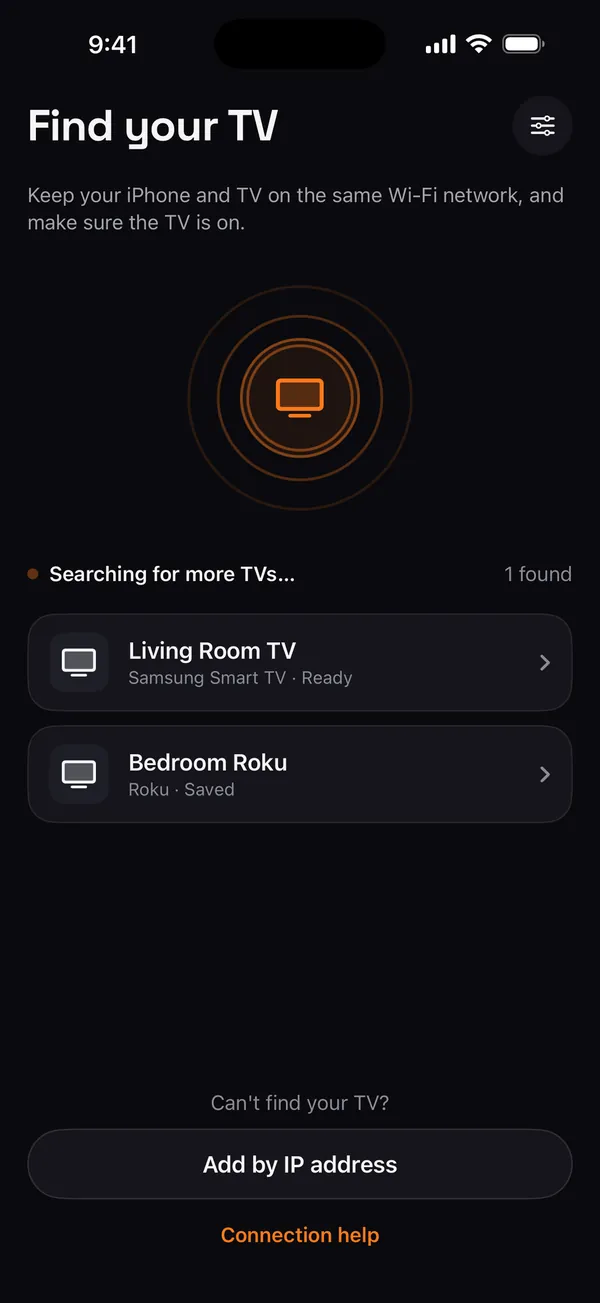
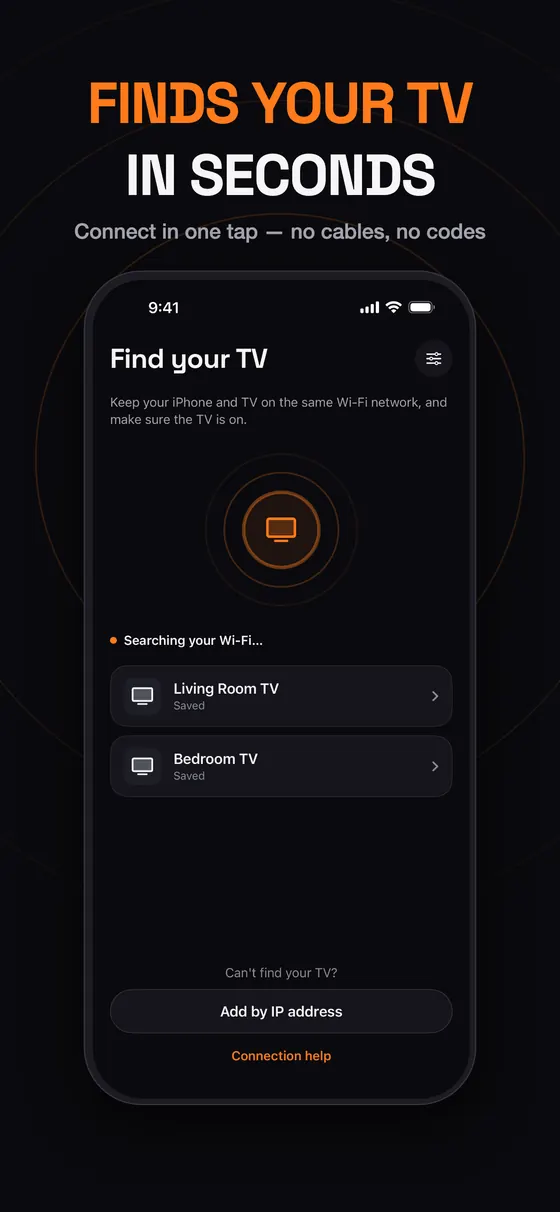
RemoFinds your TV in seconds
Remo scans your Wi‑Fi and lists the TVs it finds. Connect with one tap, or add a TV by its IP address.
Universal TV remote for iPhone
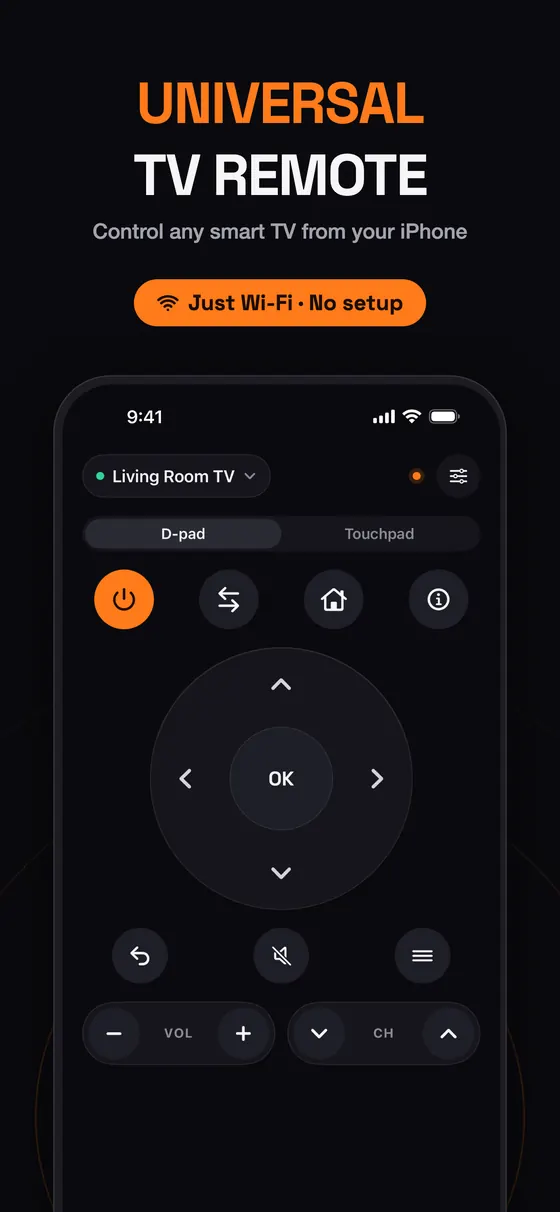
Remo turns your iPhone into a fast, beautiful remote for your smart TV. No extra hardware, no setup: put your iPhone and TV on the same Wi‑Fi and Remo finds your TV in seconds.
For iPhone with iOS 17 or later.
Remo speaks each TV's own network language, so one app controls every smart TV in your home.
Not supported: Hisense TVs that run only VIDAA, and cable or operator set-top boxes. Panasonic TVs from about 2019 on work only if they run Google TV or Android TV.
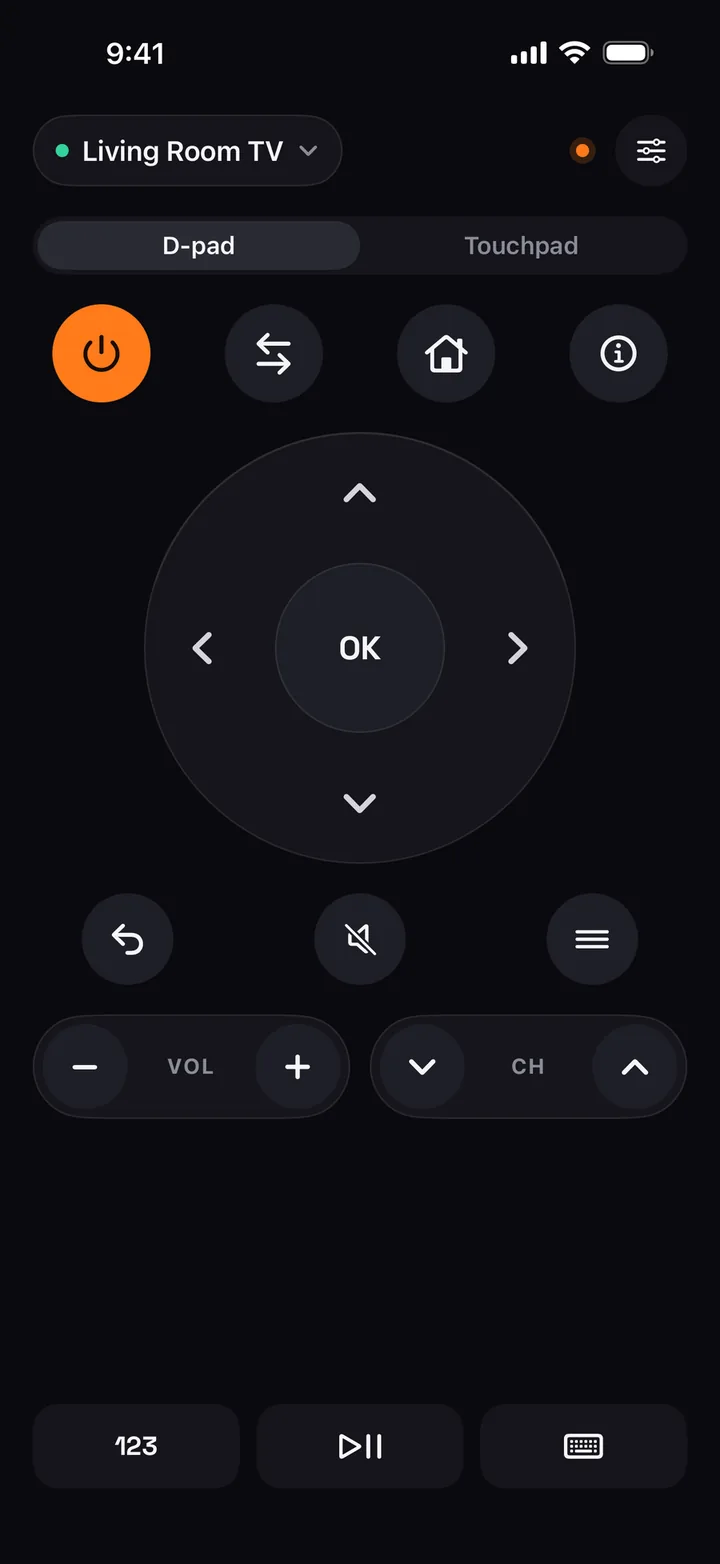
All the buttons you reach for, plus a touchpad and a real keyboard that a plastic remote can't match.
Remo scans your Wi‑Fi and lists the TVs it finds. Connect with one tap, or add a TV by its IP address.
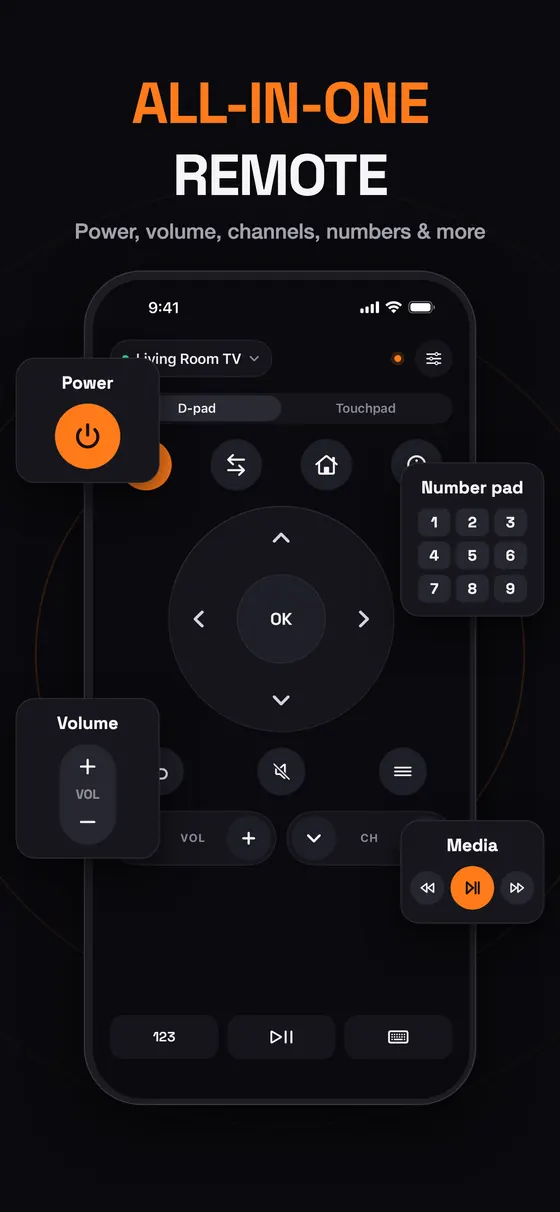
Power, volume, mute, channels and a precise D‑pad, plus home, back, menu, input source and app shortcuts where your TV supports them.
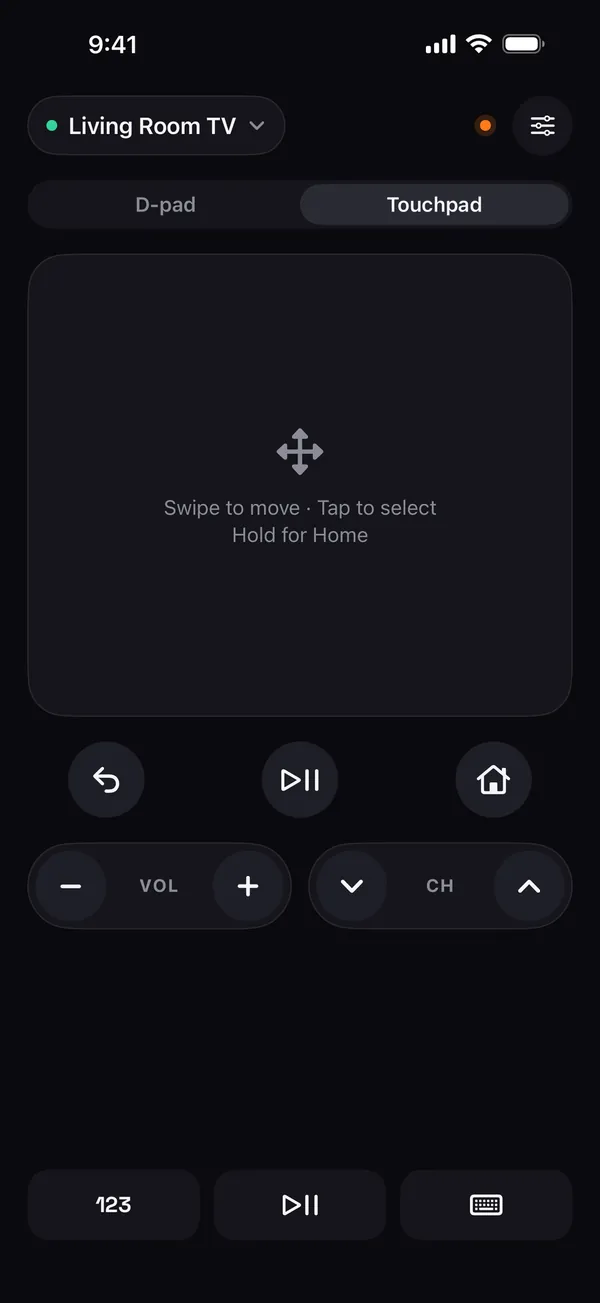
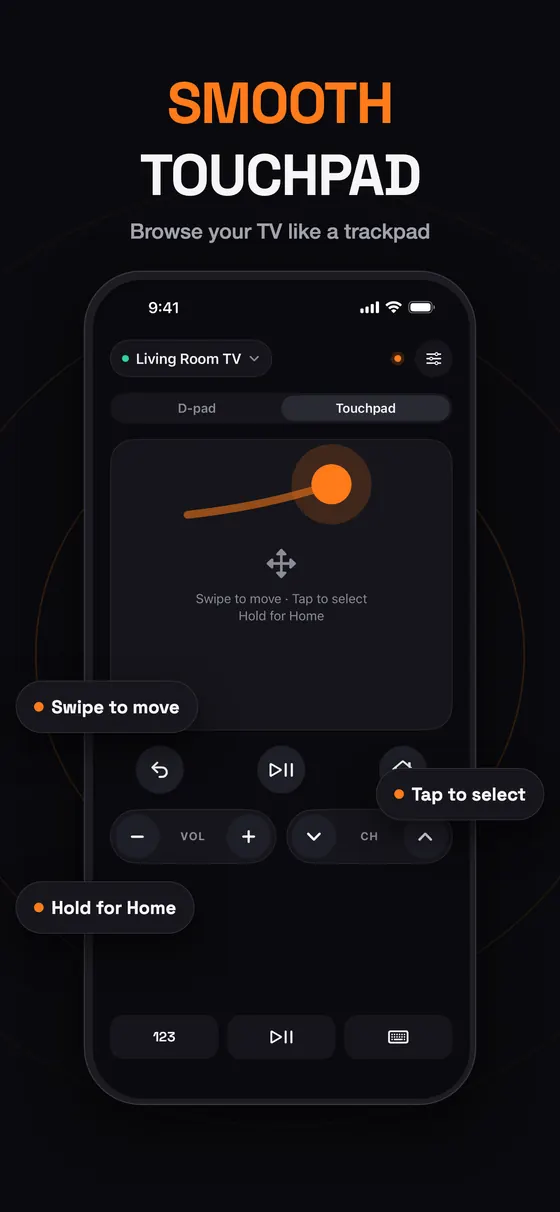
Swipe to move, tap to select, hold for Home. Browsing long menus feels like using a trackpad.
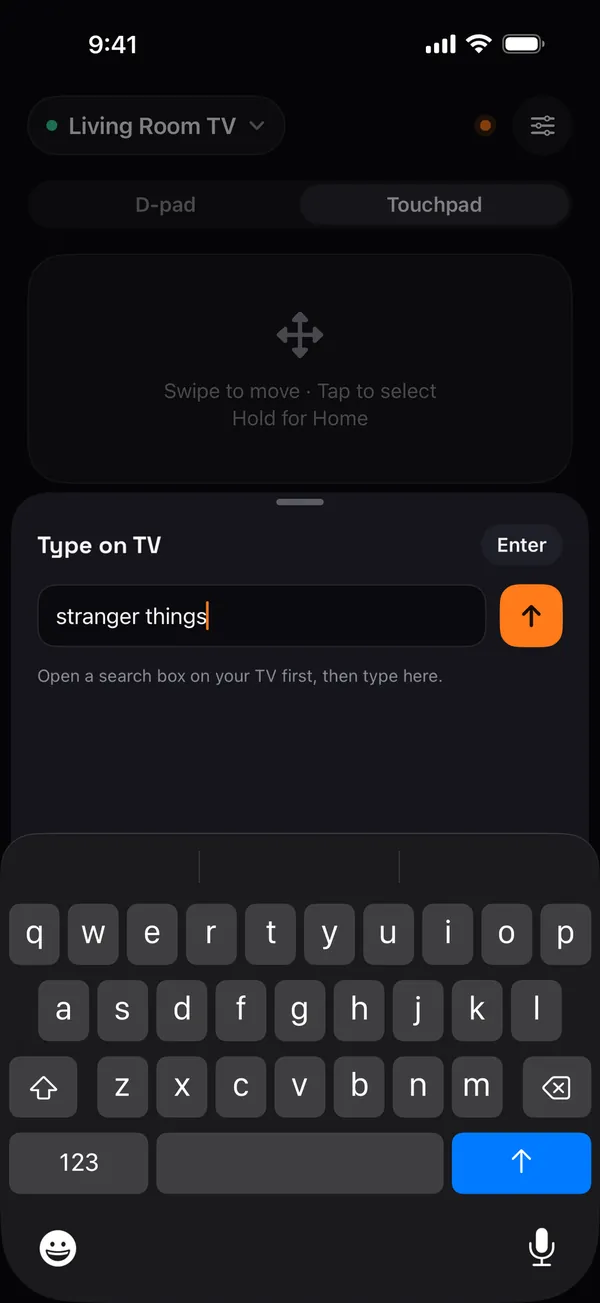
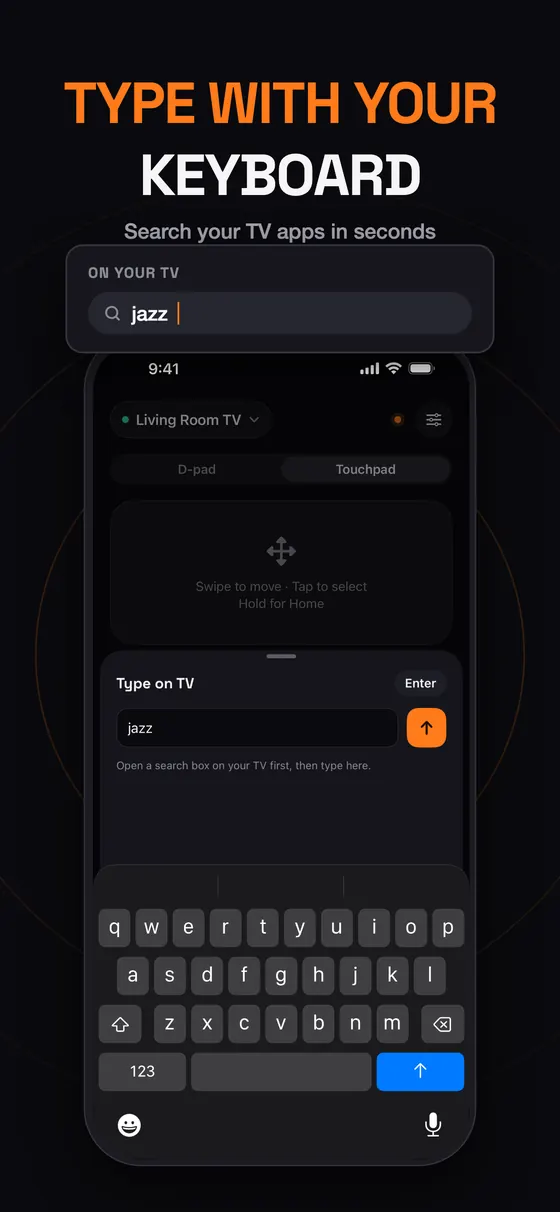
Type searches and passwords straight from your iPhone instead of pecking at letters one by one.
Jump to a channel with the number pad. Play, pause, rewind and fast-forward from one row.
Remo remembers your TVs and reconnects on its own. Switch between the living room, bedroom and office in a tap.
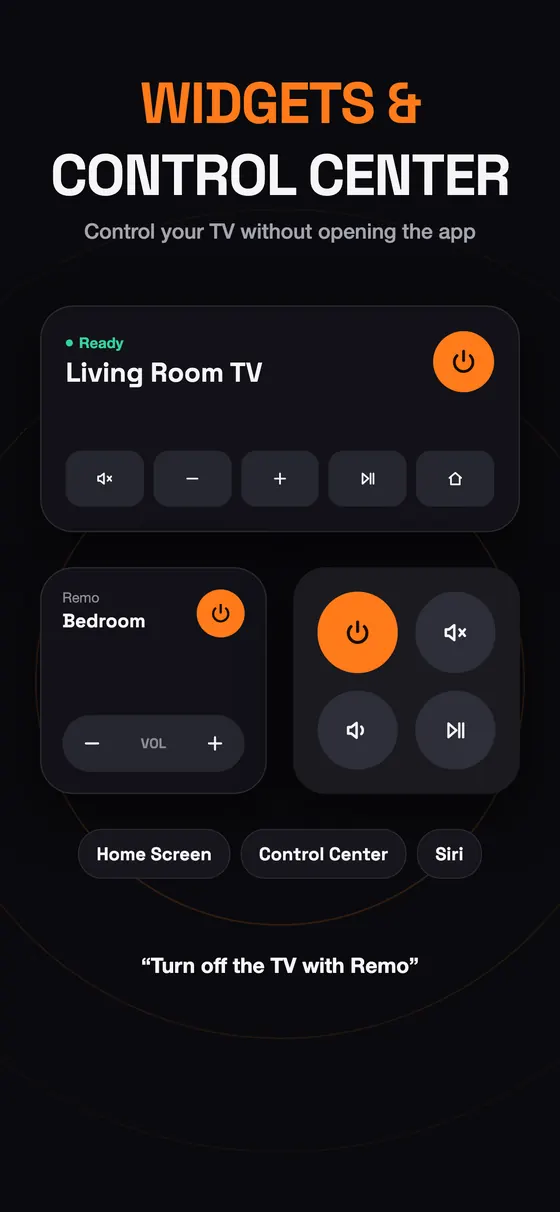
Change the volume, mute or turn the TV off from your Home Screen, Lock Screen or Control Center without opening the app.
Say “Turn off the TV with Remo” or “Mute the TV with Remo”, or add Remo actions to your own shortcuts.
Touchpad
Flip from the D‑pad to the touchpad and glide through rows of shows with your thumb. It's the quickest way through a long menu.
Keyboard
Open a search box on your TV, then type with your iPhone keyboard. Titles, usernames and Wi‑Fi passwords take seconds instead of minutes.
Instant setup
No cables, no codes to look up. Remo listens for TVs on your network and runs a fast scan, so your TV shows up almost as soon as you open the app.
Connect your iPhone to the same Wi‑Fi network as your TV, and make sure the TV is on.
Allow Local Network access when iOS asks. Remo lists the TVs it finds; tap yours.
Accept on the TV or type the code it shows. Remo remembers it and reconnects next time.
Remo sends your button presses straight to the TV over your local network. There's no account to create, and your TV list stays on your iPhone.
Remo is a universal TV remote app for iPhone. It controls smart TVs and streaming devices over the local Wi‑Fi network, so it needs no extra hardware and no infrared.
| Platform | iPhone, iOS 17 or later |
|---|---|
| How it connects | Over your home Wi‑Fi (local network); the iPhone and TV must be on the same network |
| Supported TVs | Samsung, LG, Sony Bravia, Roku, Amazon Fire TV, Google TV & Android TV, Vizio, Philips, Panasonic |
| Not supported | Hisense VIDAA-only TVs, cable and operator set-top boxes. Panasonic TVs from about 2019 on work only if they run Google TV or Android TV. |
| Controls | Power, volume, mute, channels, D‑pad, touchpad, keyboard, number pad, media keys |
| Extras | Saved TVs with auto-reconnect, multiple TVs, Home Screen, Lock Screen and Control Center widgets, Siri Shortcuts |
| Account | Not needed |
| Languages | 15, including English, Spanish, German, Japanese, Arabic and Chinese |
| Price | Free download; some features need a Remo Pro subscription |
iPhone has no IR blaster, but it can still control your smart TV over Wi‑Fi. What you need, which TVs work, how pairing works and what to do if it fails.
Read the guideControl a Samsung smart TV from your iPhone over Wi‑Fi: first-time Allow prompt, fixing a denied connection, typing, and what to do if the TV is off Wi‑Fi.
Read the guideUse your iPhone as a Fire TV Stick remote over Wi‑Fi: pairing with the 4‑digit PIN, typing searches, a missing PIN, and what to do if the stick is offline.
Read the guideTV remote app can't see your TV? Check the Wi‑Fi, Local Network permission, guest networks, VPNs and TV settings, or add the TV by its IP address.
Read the guideSamsung (Tizen and many older models), LG webOS, Sony Bravia, Roku and Roku TV, Amazon Fire TV and Fire TV Stick, Google TV and Android TV (TCL, Hisense Google TV models, Xiaomi, Philips Android TV, Sharp AQUOS Google TV and more), Vizio SmartCast, Philips and Panasonic. Hisense TVs that run only VIDAA and cable or operator boxes are not supported. Panasonic TVs from about 2019 on work only if they run Google TV or Android TV.
No. iPhone has no infrared transmitter, so Remo works over your Wi‑Fi instead. Your iPhone and TV just need to be on the same network.
Make sure the TV is on and connected to the same Wi‑Fi as your iPhone (guest networks usually block devices from seeing each other), turn off any VPN, and allow Remo in Settings › Privacy & Security › Local Network. You can also add the TV by its IP address.
iOS asks before any app talks to devices on your home network. Remo needs it to find your TV and send it commands. Nothing leaves your network.
Yes. Open a search or text field on the TV, then type with your iPhone keyboard. Typing works on Samsung Tizen, LG, Sony, Roku, Fire TV, Google TV and Android TV.
No. Remo is a remote control: it sends button presses, touchpad gestures and text to your TV. It doesn't mirror or cast your screen.
Remo can always turn the TV off. Turning it back on over Wi‑Fi works only on TVs that keep their network active in standby, for example Sony with Remote start enabled or Android TV and Google TV models with network standby on.
Yes. Remo saves every TV you connect to and reconnects automatically. Switch between them from the TV menu at the top of the remote.
Remo is free to download. Some features need a Remo Pro subscription, which renews automatically until you cancel it in your Apple Account settings.
No. Remo is an independent app and is not affiliated with Samsung, LG, Sony, Roku, Amazon, Google, Vizio, Philips or Panasonic.
Download Remo, join the same Wi‑Fi as your TV, and you're in control.
Download on theApp Store